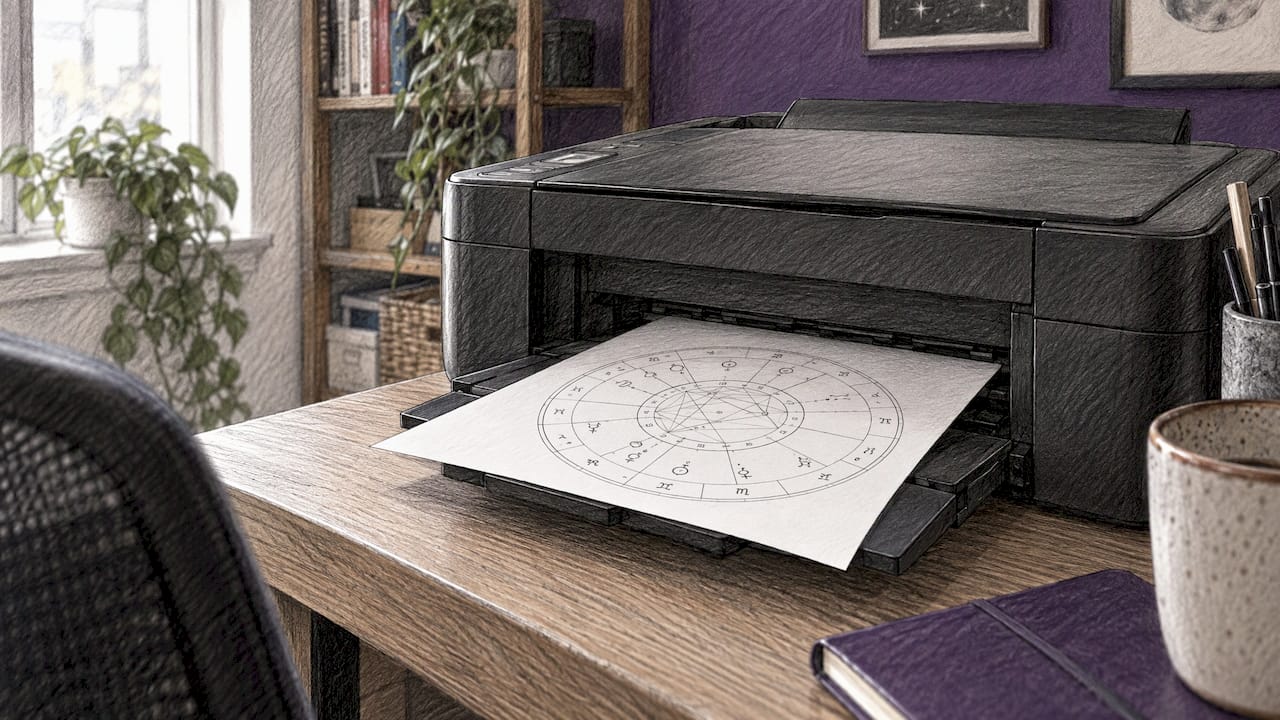
You can export a birth chart in two ways: save it inside an app that keeps your chart and readings together, or download it as a PDF or image file and print it. The first way keeps your chart connected to your history. The second gives you a file to hold. This guide covers both, step by step. It also shows what to check so the chart you save is the right one.
If you want your chart saved with your readings and journal, we built Tarosyn for that. Your birth chart context stays attached to your readings, so you do not rebuild it each time.
TL;DR
- Export means saving your chart as a file (PDF, PNG or similar) or storing it in an account you can open again.
- Use PDF for printing. Use PNG for sharing and posting.
- Check your birth time and birthplace before you export. A small time error can change your rising sign and houses.
- Save the file, then check that the wheel, planet list and aspect table are all included.
- Tarosyn lets you save readings and track your growth in one place, so your chart is not just a loose file.
Table of Contents
- What "exporting a birth chart" means
- Before you export: check your birth data
- Option 1: Save your chart in an app
- Option 2: Download your chart as a file
- Option 3: Print your birth chart
- How to check your export is complete
- Name your files so you can find them
- What to check about privacy
- Save exports before you close the tool
- Choosing a birth chart app: what to compare
- Use your exported chart for reflection
- Perspective
- Start with a saved chart in Tarosyn
- FAQ
- Sources
What "exporting a birth chart" means
A birth chart is a map of where the planets were when you were born. It is built from three facts: your birth date, your birth time and your birthplace. If you are new to the idea, read our beginner's guide to how a birth chart works first.
When people search for a birth chart export, they usually mean one of these:
- Download: a file saved to your phone or computer.
- Print: a paper copy of the chart wheel and the details.
- Save: a stored chart you can open later without typing your data again.
- Share: an image you can post or send to a friend.
Each one needs a slightly different step. Pick the goal first, then follow the matching section below.
Before you export: check your birth data
An export only repeats what you typed in. If the input is wrong, the file is wrong too. Check these three things.
- Birth date. Use the date on your birth certificate.
- Birth time. Use the exact time if you have it. A guide on saving and printing charts notes that even a few minutes of error in birth time shifts the house cusps and the rising sign, so double-check the time before you generate the chart.
- Birthplace. Enter the city, not just the country. The place sets the time zone and the coordinates.
If you do not know your birth time, ask a family member or look at your birth certificate. Some hospitals record it. If you cannot find it, note that the houses and rising sign may be less certain. Our article on birth chart houses shows how two people born 20 minutes apart can end up with different house placements.
Option 1: Save your chart in an app
Saving inside an account is the simplest option. You enter your data once. The chart stays stored. You open it again when you want it.
Here is the usual flow:
- Create an account.
- Enter your name, birth date, birth time and birthplace.
- Generate your chart.
- Save it to your profile.
- Open it again from your saved items.
This is how Tarosyn works with your chart. You can save readings, keep journal entries next to them and track your spiritual growth over time. Our readings are built to remember your history and use your birth chart context, so each new reading starts from what you already saved. For a closer look at how that reading is created, see our guide to an AI birth chart and personalized natal reading.
A saved chart also helps if you read charts for more than one person. Our guide on how to organize birth charts explains how to build an index, use templates and find a chart fast.
Option 2: Download your chart as a file
A file is useful when you want a copy outside any app. It is also what you need for printing.
Most chart tools that offer downloads follow this pattern:
- Generate your chart.
- Find the export, download or printer icon. It is often at the top right or the bottom left of the chart page.
- Choose a format.
- Save the file.
- Open the file and confirm it looks right.
One app's help documents describe a typical menu: open the chart, press Export chart at the top right is not the only layout, so look around the chart page for a menu with the same idea. Some tools let you choose a wheel only, a full image or a PDF. Others only offer a print button. If your tool has only a print button, you can still make a PDF. Use the steps in the printing section below.
Which file format should you choose?
| Format | Best for | Notes |
|---|---|---|
| Printing, archiving, emailing as one document | Keeps the layout at page size | |
| PNG | Posting on social media, sending in messages | Sharp on screen, can be large |
| JPG | Quick sharing | Smaller file, slightly less sharp lines |
| SVG | Designers and creators who resize the wheel | Scales without losing quality |
| Data file | Moving chart data between astrology programs | For advanced users |
The PDF Expert guide frames the choice in plain terms: PNG for sharing and posting, PDF for printing at a proper page size. If a tool only gives you one, you can convert it to the other.
Tips for a sharp image
- Capture the chart at the largest size the page will show. A small image looks blurry when you print it or zoom in.
- Keep the PNG for sharing. Make a PDF for printing.
- If your wheel, aspect table and interpretation are separate images, merge them into one PDF.
- If a PNG is several megabytes, compress it before you email it.
These tips come from the same guide to saving and printing birth charts.
Option 3: Print your birth chart
Printing is easy once you have a good file. You can also print straight from your browser.
Print from a computer
- Open the chart page or the PDF.
- Press Ctrl+P on Windows or Cmd+P on a Mac.
- Choose your printer, or choose "Save as PDF" to make a file.
- Set the paper size to Letter for standard US paper.
- Turn on background graphics if colors are missing.
- Check the preview. Then print.
Print from an iPhone
- Open the chart or the PDF.
- Tap Share.
- Tap Print.
- Choose an AirPrint printer on the same Wi-Fi network.
Print from an Android phone
- Open the chart or the PDF.
- Tap the three dots, then Share, then Print.
- Choose your printer, or choose "Save as PDF".
These phone steps match a printing guide that covers iPhone, Android and desktop browsers. The same guide advises turning on background graphics if colors or highlights are missing from the printout.
If the print looks wrong
- Chart is cut off: change the scale to "Fit to page".
- Colors are missing: turn on background graphics.
- Text is tiny: print in landscape, or print the wheel and the table on separate pages.
- Image is blurry: go back and export a larger file.
How to check your export is complete
A good export has more than a pretty circle. Open your file and look for these items.
- Your name and birth details. The date, time and place should appear on the page. This lets you spot a typing error right away.
- The chart wheel. You should see the twelve houses and the planet symbols.
- A planet list. It should show each planet and its sign, and often the degree.
- An aspect table. This lists the angles between planets. Without it, you cannot read how the planets interact.
- Your rising sign. It sits at the left side of the wheel.
- The house system. Different systems divide the houses in different ways. Whole Sign is a common choice among astrologers. One astrologer points out that it is not the default on every tool and has to be selected in the options. Note which system your file uses, so you can compare charts later.
- Readable text. Zoom in. If you cannot read the degrees, export again at a larger size.
If one of these is missing, go back to the tool and look for extended or advanced options. Then export again.
Name your files so you can find them
A folder of files called "chart (1).pdf" is hard to use. Use a simple pattern:
Name-BirthDate-ChartType.pdf
For example, Maya-1992-03-14-Natal.pdf. Save the birth time in a note, because it does not always show in the file name. Keep one copy on your device and one in cloud storage. If you read for friends or students, use one folder per person.

What to check about privacy
Your birth chart holds your birth date, time and place. That is personal data. Before you create an account or download anything, check these points.
- What is required to sign up. Some tools ask only for an email. Others ask for more.
- How long your data is kept. Look for a clear statement about retention and deletion. Our article on birth chart privacy and indefinite retention explains what to look for.
- Who can see your chart. Check whether your saved chart is private by default.
- What you share. When you post an image, the date and place printed on it go public too. Crop or hide them first. Our guide on sharing birth charts safely and respectfully lists the details to remove and how to ask a friend before you share theirs.
Tarosyn is built with privacy by design, and you can choose to connect with others or keep your practice personal.
Save exports before you close the tool
Some chart tools do not store anything. When you close the tab, the chart is gone. If you track transits over time, this matters. Save the file or the saved reading before you leave. Our article on how to track astrology transits and save exports shows a simple routine for this.
Choosing a birth chart app: what to compare
There are many free birth chart apps and calculators. Compare them on a short list:
- Does it save your chart? A saved chart means you do not retype your data.
- What can you download? Look for PDF, image and wheel-only options.
- Can you choose the house system? This matters if you follow one method.
- Does it keep your history? A tool that links past readings to your chart gives you more to reflect on.
- What are the privacy terms? Read them before you enter your birth data.
- Is there a community? If you like to compare charts with friends, look for private circles and sharing tools.
- Is the reading grounded in your chart? Our piece on what AI astrology accuracy means explains how chart math and interpretation fit together.
Tarosyn covers the first, fourth, fifth and sixth points: saved readings, readings that remember your history, privacy by design, and an integrated community with friend circles and content sharing tools. It also includes birth chart, daily horoscope and synastry compatibility, along with tarot, numerology and journaling.
Use your exported chart for reflection
A saved chart is only useful if you return to it. Here is a simple routine.
- Print your chart or open it on your phone.
- Pick one placement, such as your Moon sign.
- Write one sentence about how it shows up in your week.
- Save the note with the date.
- Repeat once a week.
Over a few months, you build a record. In Tarosyn, journaling sits next to your readings, so the notes and the chart stay together. If you want a method, our birth chart self-analysis guide walks through it. If you are still learning what a reading includes, start with what a natal chart reading is.
For content creators
If you post charts, use PNG and export at the largest size. Remove private details first. Keep a clean copy without personal data for public use. Name the files by theme so you can find them for later posts.

For community builders
If you run a circle, ask each member before you share their chart. Store charts in one organized place. Use the same format for every member, so the group can compare them side by side.
Perspective
A downloaded chart is a snapshot. It shows your sky on the day you were born, and it stays the same. What changes is you, and your questions.
We built Tarosyn around that idea. Your readings remember your history and use your birth chart context. You can add journal entries, save readings and look back at how your practice has grown. A file in a folder cannot do that on its own.
Our approach is to give guidance that is reflective and emotionally intelligent, not generic or predictive. We also keep privacy by design, so you decide what stays personal and what you share with your circle.
Save your chart in a place where it can keep working for you.
Joseph Calitoy
Start with a saved chart in Tarosyn
Tarosyn is free to start. You can save your readings, keep your journal and open your chart context each time you return. Paid plans unlock premium features: Mystic monthly is $7.99 per month, and Annual circle is $59.99 per year. Luna packs are also available. Choose your plan on the Tarosyn site.

Enter your birth date, time and place once. Then open your chart whenever you want to read, reflect or share with a friend.
FAQ
How do I download my birth chart as a PDF?
Generate your chart, then look for a download, export or printer icon on the chart page. Choose PDF and save the file. If there is only a print option, choose "Save as PDF" in the print window. Open the file afterward to check that the wheel and the aspect table are both there.
What is the difference between a birth chart and a natal chart?
They are the same thing. Both names describe the chart of the sky at your birth, built from your date, time and place. People use "birth chart" more often in casual searches, and "natal chart" more often in astrology books and reports.
Can I print my birth chart from my phone?
Yes. On an iPhone, tap Share, then Print, and choose an AirPrint printer on the same Wi-Fi network. On Android, tap the three dots, then Share, then Print, and pick a printer or "Save as PDF". Turn on background graphics if colors are missing.
Do I need my exact birth time to save a chart?
You can generate a chart without it, but the houses and rising sign depend on the birth time. Even a few minutes can change them. Check your birth certificate or ask a family member for the most accurate time.
Is it safe to share my exported chart online?
It is safer when you remove your birth date, time and place first. Those details are personal data. Crop the image or hide the header before you post. Ask permission before you share anyone else's chart.
Sources
- How to Save and Print Your Birth Chart (as PDF or PNG)
- How to print a webpage (Chrome, Safari, iPhone, Android)
- How to pull your birth chart for free online